Monitoring
Setting up a monitoring stack for a homelab is critical to ensuring optimal performance, reliability, and security. It allows you to track resource usage, perform health checks, and troubleshoot problems issues, minimizing downtime. Overall, a robust monitoring setup is essential for maintaining a well-functioning and efficient homelab.
Requirements definition
Monitoring the infrastructure and applications is critical to detect potential hardware problems or limitations, have security insight (e.g. brut-force attacks) and to track application resource consumption. For both the system and containers I want to monitor CPU, RAM, Disks (including RAID) usage and capacity. I also want as well to retrieve system and applicative logs. I would also like to be able to implement geographical fail2ban statistics and finally, for application providing it, it would be nice to export applicatives metrics.
- Metrics
- Metrics are all the measurements that are taken on the server. From RAM usage to fan speed to processor temperature, everything can be measured on a machine (using hwinfo for example). In this section, we'll look at ways of collecting this data and making it available to a viewing tool.
Tools
Grafana and more
The Grafana stack consists of several tools, some to retrieve metrics or logs, some to store those data and Grafana to visualise it all.
- Node-exporter
- As its name suggests, Node-exporter allows you to collect metrics from your Linux environment and export them to a timeseries-type database (e.g. Prometheus).
- cAdvisor
- cAdvisor, which stands for Container Advisor, is an open source tool developed by Google. It monitors the metrics of each container, such as network, memory, CPU consumption, etc. and then exports them to the database (Prometheus).
- Prometheus
- Prometheus can be thought of as a metrics database that makes the metrics collected by Node-Exporter and cAdvisor available to Grafana.
- Promtail
- Promtail collects and sends logs (system, applicative, any logs) to be stored in Loki.
- Loki
- Loki is like Prometheus but for logs. It stores and makes available the logs sent by the loki-docker-driver and Promtail plugins.
- loki-docker-driver
- Grafana Loki officially supports a Docker plugin that reads logs from Docker containers and sends them to Loki.
- Grafana
- Grafana is a tool for displaying data from just almost anywhere. It lets you create dashboards from a variety of tiles, including graphs, curves, histograms, logs, text, maps and more.
This stack will allow me to monitor my homelab in great detail. It could also be a great showcase for my skills.
Dozzle
Dozzle is a simple, effective and lightweight alternative for viewing container logs, instant metrics and for interacting with containers.
The speed and simplicity of this tool will gives me a quick overview of the logs and metrics of my containers.
Uptime Kuma
Uptime Kuma is a fancy, easy-to-use uptime monitoring tool.
I will use this tool to set up a dashboard to get an insight into the uptime of my services.
Deprecation and new tool
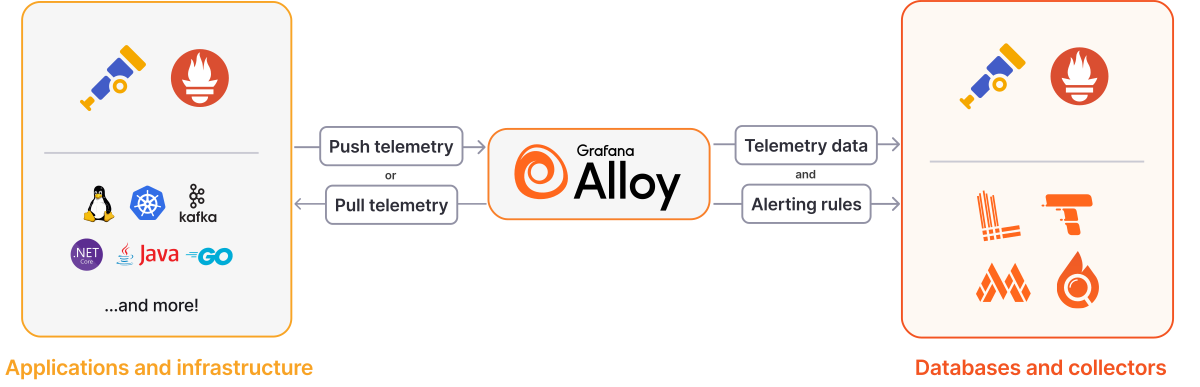
Since I write the first par of this post, I learned that Promtail got deprecated and is being replaced by Grafana Alloy.
On top of the replacement of Promtail, Alloy has been conceived to allow metrics, logs and trace collection from different sources. From my research I seems that Alloy could replace Node-Exporter, CAdvisor and loki-docker-drive.
Alloy implementation
Alloy Setup
Let's follow the official documentation !
The first thing we have to do is to create a config.alloy file
Now we have to convert the docker run command in a pretty swarm service :
Docker setup
Once the service is up, we can access to a really simple but helpful UI.
Making Alloy ready
The previous Docker stack isn't enough to run Alloy in "prod". We have to improve it a bit.
services:
  alloy:
    image: grafana/alloy:v1.12.2
    deploy:
      replicas: 1
    labels:
        traefik.enable: "true"
        traefik.http.services.alloy.loadbalancer.server.port: 12345
        traefik.http.routers.alloy.rule: Host(`alloy.lsarlinmagnus.fr`)
        traefik.http.routers.alloy.entrypoints: websecure
        traefik.http.routers.alloy.tls: "true"
        traefik.http.routers.alloy.tls.certresolver: ovh
        traefik.http.routers.alloy.middlewares: authelia@file
        homepage.group: Monitoring
        homepage.name: Alloy
        homepage.icon: alloy.png
        homepage.href: https://alloy.lsarlinmagnus.fr
    configs:
      - source: alloy_config
        target: /etc/alloy/config.alloy
    volumes:
      - /:/rootfs:ro
      - /run:/run:ro
      - /var/log:/var/log:ro
      - /sys:/sys:ro
      - /var/lib/docker/:/var/lib/docker/:ro
      - /run/udev/data:/run/udev/data:ro
    command:
      - run
      - /etc/alloy/config.alloy
      - --server.http.listen-addr=0.0.0.0:12345
      - --storage.path=/var/lib/alloy/data
    networks:
      - proxy

configs:
  alloy_config:
    file: ./alloy/config.alloy

networks:
  proxy:
    external: true
Alloy configuration
Alloy is configured within the config.alloy file. The configuration is build using "components".
We can visualize the result in Grafana > Drilldown
Conclusion
With all these tools I will be able to have a quick look at my logs, a view on the uptime and a deep knowledge of what's happening in my homelab !